
Setting User-Defined Attributes
In Modeler, users can set arbitrary key-value pair strings on objects with a script command (this functionality is not available in the software interface). These user-defined attributes will be preserved when the model is exported as a JT or Step file for use in third-party CAD files, such as NX:
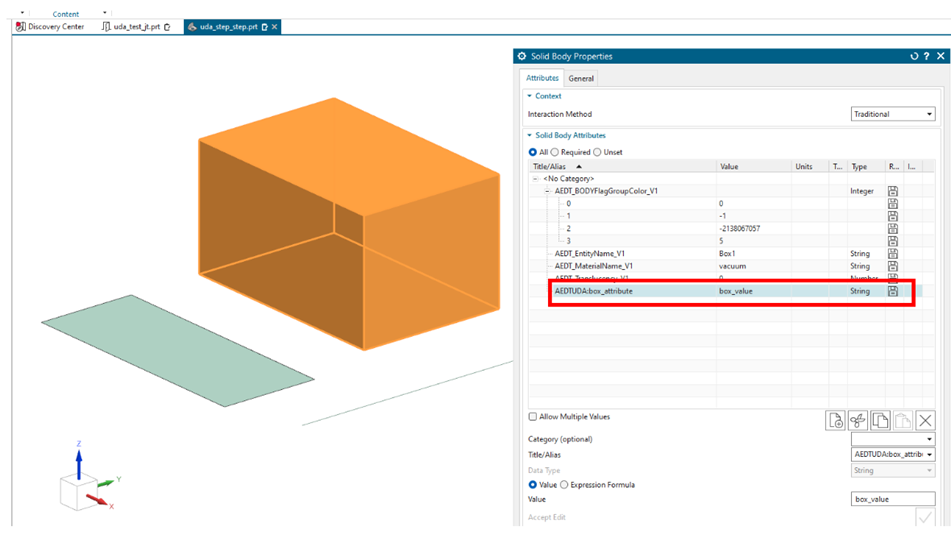
They will also be recognized if the model is reimported into Ansys Electronics Desktop.
The commands related to this functionality are listed below:
- SetObjectAttributeValues
- GetObjectAttributeValues
- RemoveObjectAttributeValues
SetObjectAttributeValues
| UI Access | None | ||||||||||||
| Parameters |
|
||||||||||||
| Return Value | Returns a value of 1 if attribute is successfully set |
| Python Syntax | SetObjectAttributeValues(<objectName>, "AEDTUDA", [“keyName”, “KeyValue”,..]) |
| Python Example |
oEditor = oDesign.SetActiveEditor("3D Modeler") oEditor.SetObjectAttributeValues("Box1", "AEDTUDA", ["box_attribute", "box_value"]) oEditor.SetObjectAttributeValues("Rectangle1", "AEDTUDA", ["sheet_attribute", "sheet_value"]) oEditor.SetObjectAttributeValues("Line1", "AEDTUDA", ["line_attribute", "line_value"]) |
GetObjectAttributeValues
| UI Access | None | ||||||||||||
| Parameters |
|
||||||||||||
| Return Value | List of key value pairs |
| Python Syntax | GetObjectAttributeValues(<objectName>, "AEDTUDA", <stringFilter>) |
| Python Example |
oEditor = oDesign.SetActiveEditor("3D Modeler") oEditor.GetObjectAttributeValues("Box1", "AEDTUDA", [" "]) Returns |
RemoveObjectAttributeValues
| UI Access | None | ||||||||||||
| Parameters |
|
||||||||||||
| Return Value | Returns a value of 1 if attribute is successfully deleted |
| Python Syntax | RemoveObjectAttributeValues(<objectName>, "AEDTUDA", <stringFilter>) |
| Python Example |
oEditor = oDesign.SetActiveEditor("3D Modeler") oEditor.RemoveObjectAttributeValues("Box1", "AEDTUDA", [" "]) |
UDAs are available and editable when the component is open for editing. The UDAs of the component parts cannot be accessed or queried from the project/design level.
To edit a component, make sure to call it first:
oEditor = oDesign.SetActiveEditor("3D Modeler")
oProject.GetName()
'uda_comp'
oEditor.GetObjectAttributeValues("Box1", "AEDTUDA", [" "])